After you write a Tcl script based on the information in the
Informatica Data Replication Scripting Guide
, enter the script for a source table in the Data Replication Console.
Before you begin, make sure that the Console is in Edit mode.
On the
Map Tables
tab, select the mapped source table row for which to define a Tcl expression.
Click the
Add or Show Table Expression
icon button above the source tables filter field, or right-click the table row and click
Add or Show Table Expression
.
The
Add/Show expressions
dialog box appears.
Click
New
.
Enter an expression name and click
OK
.
An expression name can be no longer than 50 characters and can include only the digits 0-9, Latin letters A-Z and a-z, and the underscore (_) character.
In the
Language
field, select
TCL
.
Double-click the
Expression
field or click
Edit
.
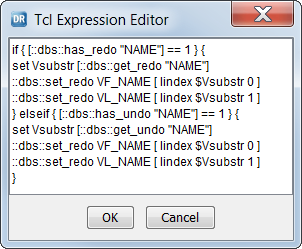
The
Tcl Expression Editor
dialog box appears.
Enter a Tcl expression for processing the replicated data and click
OK
.
The Tcl expression appears in the
Add/Show expressions
dialog box.
To edit an expression, double-click in the
Expression
field, or select the expression row and click
Edit
.
To rename an expression, double-click in the
Name
field. Then edit the expression name and press
Enter
.
To delete an expression that is not assigned to any virtual column, select the expression row and click
Delete
.
When done, click
Close
.
Next, you can assign the Tcl expression to a virtual column.