The Home page provides a guided and unified experience for
Data Integration
and
Data Ingestion and Replication
users.
Regardless of whether you select
Data Ingestion and Replication
or
Data Integration
on the
My Services
page, the unified
Home
page appears.
The
Home
page is customized for each user in your organization based on the following criteria:
Your organization's licenses
Your user roles
Whether you've configured a primary cloud data warehouse
Whether your organization has any runtime environments
Whether you've created assets or run jobs
For example, if you use
Data Ingestion and Replication
only, the
Transform
,
Orchestrate
,
Use our data transfer task!
, and
Try out our mapping templates!
panels do not appear. Or if you're an Admin user who uses both
Data Ingestion and Replication
and
Data Integration
and has already created assets and run jobs, you might see a
Home
page that looks like the following image:
The Home page displays some or all of the following panels:
Do you use a cloud data warehouse as your primary destination?
This panel appears if you haven't selected a cloud data warehouse as your primary destination. It is optional. If you define a primary cloud data warehouse, it won't be used by default when you create an ingestion and replication task.
Ingest
,
Transform
, and
Orchestrate
. These panels are the primary portals to
Data Ingestion and Replication
and
Data Integration
functionality. Click
Ingest
to create
Data Ingestion and Replication
tasks to ingest and replicate your data. Click
Transform
to create data transfer tasks or mappings to load and transform your data.. Click
Orchestrate
to create taskflows to define the control flow logic for your tasks. If you've chosen a primary cloud data warehouse, the panel names include the data warehouse type, for example,
Transform into Snowflake
.
Recent assets
and
Recent jobs
. These panels display the assets you've most recently created or modified and the jobs you've most recently run.
Add another user
and
Let's get connected!
. These panels allow you to add users and create connections in Administrator.
Use our data transfer task!
. This panel starts the wizard for creating a data transfer task.
Get insights!
. This panel provides access to
Operational Insights
service where you can monitor
Data Ingestion and Replication
jobs.
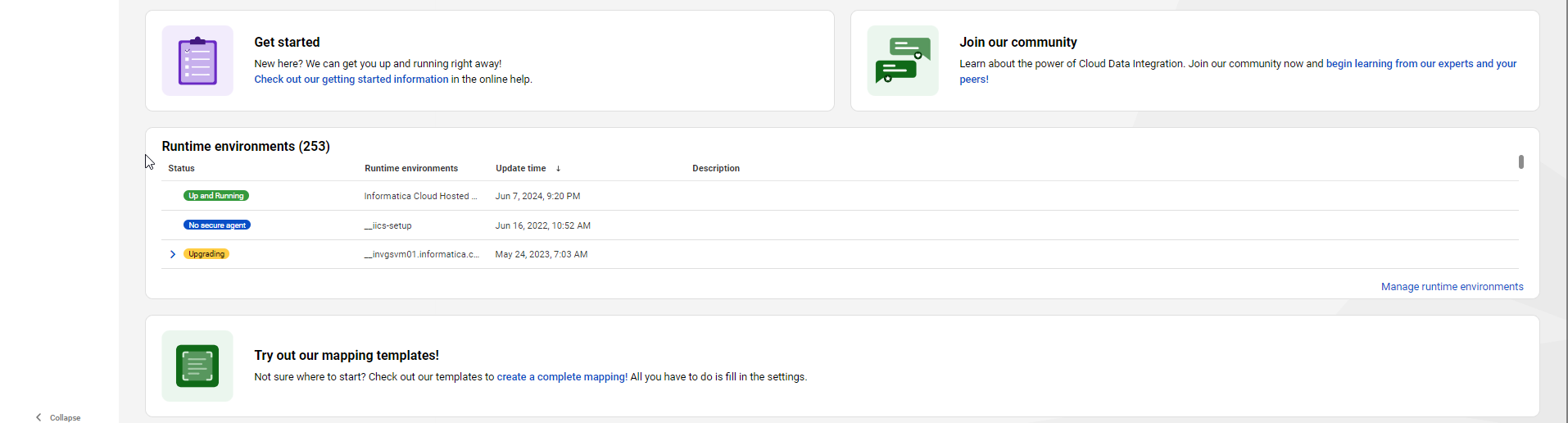
Get started
and
Join our community
. These panels provide
Data Integration
getting started information or access to the
Data Integration
community for help.
Runtime environments
. This panel displays the status of the runtime environments that are available to you and lets you jump to Administrator to manage runtime environments.
Try out our mapping templates!
. This panel enables
Data Integration
users to create a mapping based on a pre-defined mapping template.
The navigation bar on the left side provides commands that you can use to perform the following tasks:
New
. Open the
New Asset
dialog box to create an
application ingestion and replication
,
database ingestion and replication
,
file ingestion and replication
, or
streaming ingestion and replication
task. You can also create
Data Integration
assets, depending on your organization's licensing.
Home
. Return to the Home page.
Explore
. Explore all projects and assets, create projects, and access your assets.
Bundles
. Create and manage bundles of assets to share with your organization or other organizations.
My Jobs
. View the status of all of your ingestion jobs.
My Import/Export Logs
. View the status of your imports and exports.
When you switch to another service such as
Administrator
or
Monitor
, the options in the navigation bar change to suit the service.

 ASK INFAPreview