Hi, I'm Ask INFA!
What would you like to know?
ASK INFAPreview
Please to access Ask INFA.

Table of Contents

Search

  1. Preface
  2. Introduction to Microsoft Azure SQL Data Warehouse V2 Connector
  3. Microsoft Azure SQL Data Warehouse V2 Connections
  4. Synchronization Tasks with Microsoft Azure SQL Data Warehouse V2
  5. Mapping Tasks with Microsoft Azure SQL Data Warehouse V2
  6. SQL ELT Optimization
  7. Data Type Reference

Microsoft Azure SQL Data Warehouse V2 Connector

Microsoft Azure SQL Data Warehouse V2 Connector

Create a System DSN

Create a System DSN

Before creating an ODBC connection, create a system DSN.
Perform the following steps to create a system DSN on the machine where the Secure Agent is installed:
  1. Double-click the
    odbcad32.exe
    file under
    C:\WINDOWS\System32
    .
    The
    ODBC Data Sources Administrator
    box appears.
  2. Click
    System DSN
    .
    The
    System DSN
    tab appears.
  3. Click
    Add
    .
    The
    Create New Data Source
    box appears.
  4. Select
    ODBC Driver 13 for SQL Server
    and click
    Finish
    .
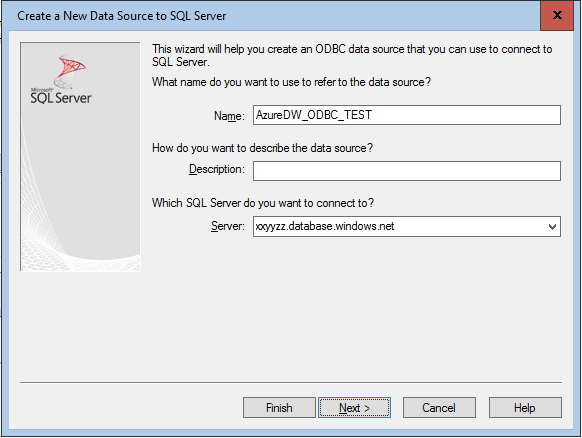
    The Create a New Data Source to SQL Server box appears.
  5. Specify the name, description, and the server you want to connect to.
  6. Click
    Next
    and provide the user name and password for SQL Server Authentication.
  7. Click
    Next
    and change the default database setting to the database you want to connect to.
  8. Click
    Next
    .
  9. Click
    Finish
    and then, click
    Test Data Source
    . Ensure that the test connection completes successfully.
  10. Click
    OK
    .

0 COMMENTS

We’d like to hear from you!