Hi, I'm Ask INFA!
What would you like to know?
ASK INFAPreview
Please to access Ask INFA.

Table of Contents

Search

  1. Preface
  2. Understanding Data Types and Field Properties
  3. Designing Processes
  4. Using and Displaying Data
  5. Designing Guides
  6. Designing Process Objects
  7. Designing Service Connectors
  8. Using App Connections
  9. System Services, Listeners and Connectors
  10. Designing Human Tasks

Design

Design

Defining App Connection Properties

Defining App Connection Properties

For each app connection, you enter descriptive properties, identify the scope, and set authentication parameters, if required.
These options display for all app connections:
  • Connection Type
    : From this list, select a published service connector, native toolkit connector (such as JDBC), or web service connector (such as Salesforce). When you create a connection, the connection type that you select determines the connection properties that are displayed.
    After you publish an app connection, you cannot change its connection type.
  • Name
    : Enter a name that identifies an app connection within and in the Designer. The name must start with a letter, and can contain only alphanumeric characters, multibyte characters, and hyphens (-). The name must not exceed 128 characters. This is a required field.
    Important
    : If you define an app connection to be used for publishing in Salesforce, the
    Connection Name
    must be
    Salesforce
    to ensure that the are accessible to users in Salesforce. Only one Salesforce app connection is permitted for each
    Application Integration
    organization.
  • Description
    : Enter a description to identify an app connection.
  • Run On
    : Select the agent where you want to access a service behind your firewall or select
    Cloud Server or any Secure Agent
    . This list displays the agents available for your organization.
  • Connection Test
    : Displays the results of any connection test run on the Cloud Server or the agent named in the
    Run On
    field.
  • OData Enabled
    : Select
    Yes
    to enable OData feeds. If you select
    Yes
    , you must specify either the allowed users or the allowed groups that can access the connection at design time. You can also enable or disable Cloud access to the OData endpoint URLs.
    After you enable OData in an app connection and publish the connection, you can click
    Actions
    Properties Detail
    to view the generated OData Service URL and OData Swagger URL.
    The OData Service URL is available on an Informatica Cloud endpoint and uses the following format:
    https://<Informatica Intelligent Cloud Services URL>/active-bpel/odata/v4/<OData_connection_name>
    The OData Swagger URL is available on an Informatica Cloud endpoint and uses the following format:
    https://<Informatica Intelligent Cloud Services URL>/active-bpel/odata/v4/<connection_name>/$metadata?swagger
    For more information about enabling the OData protocol in a Data Access Service Connector, see
    Defining Properties
    .
  • Use Secret Vault
    : Select
    Yes
    to configure the app connection to retrieve sensitive connection credentials from an external secrets manager instead of retrieving them from the Informatica Intelligent Cloud Services repository. This option is available only for an app connection that runs on a Secure Agent. You can use one of the following external secret vaults to store and retrieve credentials:
    • AWS Secrets Manager
    • Azure Key Vault
    After you have enabled the
    Use Secret Vault
    option, in the field that holds the sensitive information for the connection, enter the field value in the following format based on the secret vault you use:
    Secret Vault
    Field Value Format
    AWS Secrets Manager
    <secret name>:<secret key>
    Azure Key Vault
    <secret name>
    For example, you configure a relational connection and store the database password in AWS Secrets Manager. The secret name is
    MySQLServerCredentials
    , and the secret key is
    MyPassword
    . Select
    Use Secret Vault
    and enter
    MySQLServerCredentials:MyPassword
    in the
    Password
    field.
  • OData Cloud Access Enabled
    : If you enable OData and configure the connection to run on a Secure Agent machine or a Secure Agent group, you can choose to disable Cloud access to the OData endpoint URLs for security purposes.
  • Schema
    : Enter the name of the schema that contains the tables that you want to include or exclude in the metadata. To view the appropriate results, you must enter a schema name in the app connection that uses the data access service connector.
  • Include Tables
    : Enter the names of the tables that you want to include in the metadata. To include a list of tables, use a comma to separate multiple table names. You can also use '.*' for pattern matching. To view the appropriate results, you must also mention the included table names in the app connection that uses the data access service connector.
  • Exclude Tables
    : Enter the names of the tables that you want to exclude from the metadata. To exclude a list of tables, use a comma to separate multiple table names. You can also use '.*' for pattern matching. To view the appropriate results, you must also mention the excluded table names in the app connection that uses the data access service connector.
The remaining properties are determined by the connector or the connection type that you selected. After you enter the property value, click anywhere outside the property row or press Enter to save the value.
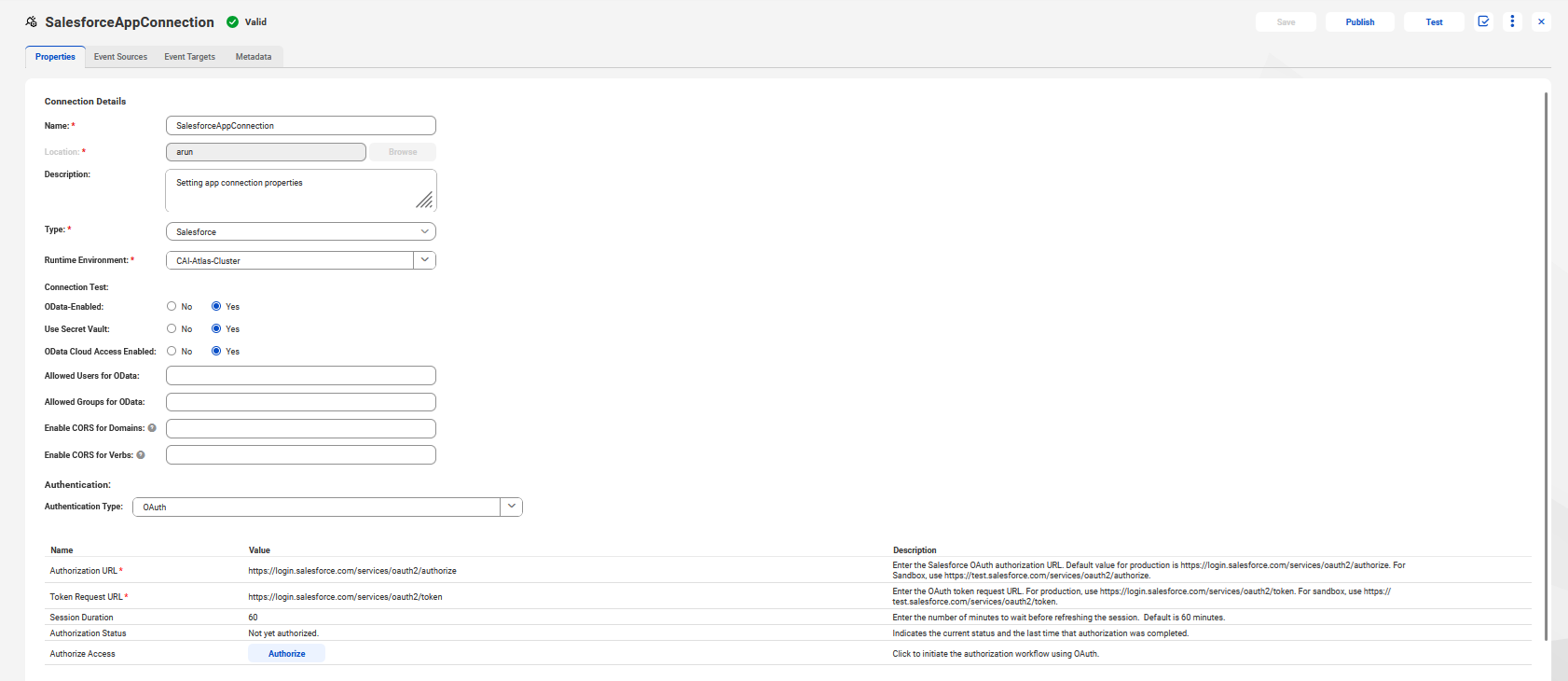
For example, the Salesforce connection type in the following image requires a
Name
,
Type
,
Authorization URL
, and
Token Request URL
:
The image shows the connection properties for a Salesforce connection.

0 COMMENTS

We’d like to hear from you!