Hi, I'm Ask INFA!
What would you like to know?
ASK INFAPreview
Please to access Ask INFA.

Tutorial: Calculator

Tutorial: Calculator

Create a JDBC Connection

Create a JDBC Connection

Enter connection properties to create a JDBC connection.
Prerequisite:
To create a JDBC connection, you must have a working Secure Agent and write access to a JDBC database.
Use the following code to create a schema in your JDBC database:
CREATE TABLE `calculatorArchive` ( `sum` int(11) DEFAULT NULL, `difference` int(11) DEFAULT NULL, `product` int(11) DEFAULT NULL, `quotient` int(11) DEFAULT NULL ) ENGINE=InnoDB DEFAULT CHARSET=latin1
Keep the following JDBC properties handy:
  • Connection URL
  • User name
  • Password
  • JDBC JAR Directory
    on the machine where you installed the Secure Agent. For example:
    C:\JDBC
    is a valid
    JDBC JAR Directory
    because the Secure Agent is on the same machine at
    C:\Program Files\InformaticaCloudSecureAgent
You do not need to create a JDBC service connector because a generic JDBC connector is built in the
Application Integration
service.
  1. In
    Application Integration
    , click
    New
    .
  2. In the
    New Asset
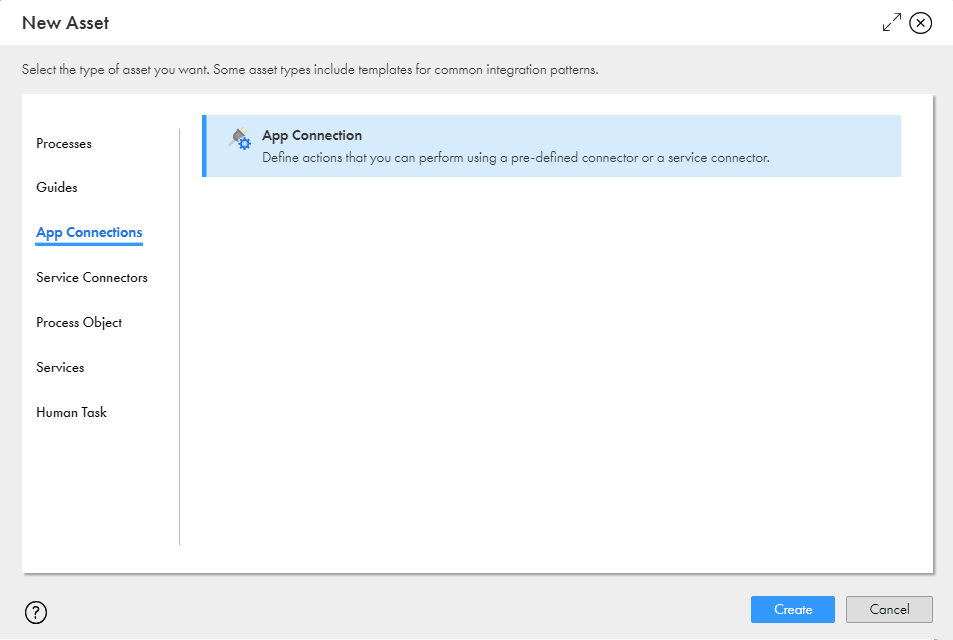
    dialog box, select
    App Connections
    App Connection
    , and then click
    Create
    as shown in the following image:
    This image shows the New Asset dialog box with Connection highlighted and a Create option.
    Process Designer opens with a connection template.
  3. Enter the following information on the
    Properties
    tab:
    1. In the
      Name
      field, enter
      JDBCConn
      .
    2. Next to the
      Location
      field, click
      Browse
      , and then browse to and select the
      Tutorials
      Calculator
      folder.
    3. In the
      Description
      field, enter the following text:
      JDBC connection to archive Calculator process results.
    4. From the
      Type
      list, select
      JDBC Generic Cloud Adaptor
      .
    5. From the
      Runtime Environment
      list, select your Secure Agent.
    6. Configure the
      JDBC Connection URL
      ,
      JDBC Jar Directory
      ,
      Username
      , and
      Password
      fields:
  4. Click
    Test
    .
    The connection tests successfully.
  5. Click
    Save
    .
  6. Click
    Actions
    Publish
    .
For more information about JDBC connections, see
JDBC Connector Guide
.

0 COMMENTS

We’d like to hear from you!
