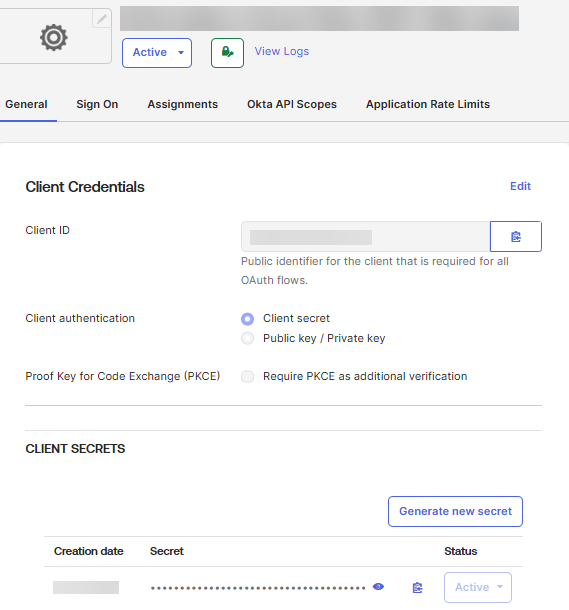
To set up an OAuth application in the Okta server, perform the following steps:
The third-party information included in
Informatica documentation is subject to change without prior notice. Check the third-party
documentation for the most up-to-date information.
Log in to the Okta portal as
an Okta administrator.
From the
Admin
console, go to
Applications
.
Click
Create App
Integration
.
On the
Create a new
app integration
page,
In the
Sign-in method
, select
OIDC -
OpenID Connect
.
In the
Application type
, select
Web
Application
and click
Next
.
On the
New Web App
Integration
page,
Enter the OAuth
application name in the
App integration name
field.
Example:
Informatica Cloud Okta OIDC Web
Application
Select
Authorization Code
and
Refresh
Token
in the
Grant type
field.
Enter the URIs in the
Sign-in redirect URIs
and
Sign-out redirect URIs
fields. You can
enter multiple URIs according to your requirements.
Syntax:
https://<Server name where Informatica Secure
Agent is hosted>/ma/proxy/oauthcallback
In the
Refresh Token
section, select
Use persistent token
in the
Refresh token behavior
field.
In the
USER
CONSENT
section, select
Require
consent
in the
User consent
field.
In the
Assignments
section,
Select a
desired option according to your requirements for the
Controlled access
field.
Select
Enable immediate access with Federation
Broker Mode

 ASK INFAPreview